
Own Your Day!
Own Your Day!
How to Upload your Final Year Project to NERD Portal By Yourself

So you have been mobilized and want to Upload your Final Year Project to NERD Portal. Congratulations! You are in the right place. Read on to know How to Upload your Final Year Project to NERD Portal by Yourself and obtain your clearance slip.
The Federal Government now requires every prospective corps member to upload their final year project or thesis to the NERD (Nigeria Education Repository and Databank). This requirement serves as a key condition for entering into the National Youth Service Corps (NYSC) orientation camp.
Every prospective corps member must upload their project, thesis, dissertation, or any equivalent academic work to the NERD system. You must also obtain a valid NERD clearance slip from your institution before you report to the orientation camp.
Lets dive into how to upload your final year project to the NERD portal.
Steps to Upload Final Year Thesis to NERD
Follow these steps carefully to upload your project and secure your clearance slip:
Option 1: Self Registration on the NERD Portal
Step 1: Visit Portal
Open your browser and search for the official NERD onboarding portal or use this link: https://esmat.ned.gov.ng/ai/enrol_v2.php
Tip: Use a stable internet connection and disable any VPN if the portal fails to load.
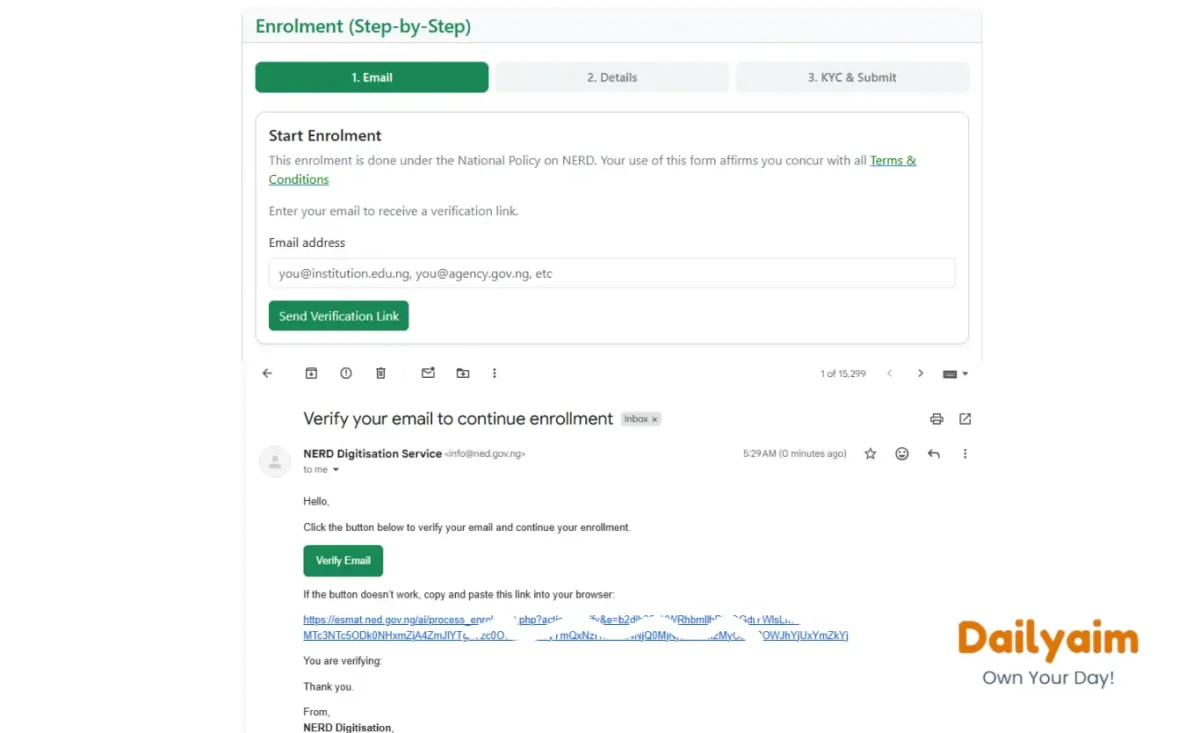
Step 2: Verify Email
At the Enrollment session,
Enter your email address and click “Send Verification Link.”
Open your email and click “Verify Email.”
If the button fails, copy the link and paste it directly into your browser.
Step 3: Select your Role
On the Details stage of the enrollment, you will need to first
Choose your Role. (Student, Lecturer, Researcher, Institution Focal Person or Executive)
If you are a student, select “Student” and proceed to step 4 below
Note: Your selected role determines the academic structure options available to you.
Also read: Why Your NYSC Call-Up Number Is Not Showing
Step 4: Choose Your Academic Structure
After selecting your Role, Next is “Academic Structure”
Select your:
- Institution
- Faculty
- Department
- Programme Category
- Matric Number
Fill in any additional required details.
Step 5: Provide Your Personal Information
Select your title (Prof., Dr., Mr., Mrs., Ms., Miss., Engr., Arc., Surv.) and enter:
- Full name
- Sex
- Date of birth
- Marital status
- 11-digit National Identification Number (NIN)
Step 6: Enter Your Contact Details
Select your state and local government area. Then provide:
- Town or city
- Contact address
- Phone number
- Next of kin details (name, phone number, and email)
Also read How to Apply for NYSC Redeployment and Relocation
Step 7: Create Your Password
Create a secure password and confirm it.
Tip: Choose a password you can remember but avoid weak or predictable combinations.
Step 8 Save and Continue
Review every information carefully then click “Save & Continue”
The system will redirected to the “KYC Stage“.
Note: Do not save until you have completed this stage of the form.
Note that the National Student Number (NSN) will be created after validation and approval.
Step 9: Complete Your KYC
Upload:
- Passport photograph (JPEG format)
- Means of identification
- Attestation document (PDF format)
The system will verify your details. You can still proceed with your project upload while you wait.
Step 10: Uploading your project
At this stage, you must have created an account through the onboarding process.
1. Access the Upload Portal
Go to the NERD project report uploading portal
2. Sign In
Click the menu icon (three horizontal lines) at the top right corner. Tap “Submit” if you use a mobile device. But if you sure desktop, kindly Sign in with your email and password; Displayed.
3. Start Upload
Click “Go to Upload.”
Step 4: Fill in the form
- Type: Select what you’re submitting, a Project, Term Paper, Seminar Paper or Dissertation, e.t.c.
- Title: Enter the main title of your project
- Meta Title: Create a short, clickable version of your project title that appears in search engine results.
- Meta Description: A summary of your project (between 120 and 150 characters).
- Keyword: Supply the focus keyword of your project. You can click on “Suggest” for auto-generation.
- Signed Certification Document: Upload a PDF copy of your project’s signed certification page. This is a page containing your Supervisor’s and/or HOD’s signature.
Tip: Scan your signed certification page and convert it to PDF before uploading
5. Paste Your Project Sections
Copy and paste each section into the portal:
- Abstract
- Introduction
- Literature Review
- Materials and Methods
- Results
- Discussion
- Conclusion
- Recommendations
- References
You may also include acknowledgements and appendices if necessary.
6. Upload Supporting Files
- Upload your full project in PDF format (maximum size: 900KB, optional)
- Upload at least one image related to your project
7. Upload Supporting Files
- Upload your full project in PDF format (maximum size: 900KB, optional)
- Upload at least one image related to your project
8. Submit Your Project
Click “Submit Project” to complete the process.
Need Help?
Contact NERD support if you encounter any issues:
- Email: [email protected].
- WhatsApp: 07071184432, 09035293953, 08180640370, 07082592319.
- Phone: +234 806 004 4989 for more info.
Read also: How to Check Your Name on NYSC Senate list
Option 2: Register Through an Accredited NERD Registration Centre
Due to a high level of enrolment errors, PCM are advised to enroll only through accredited NERD Digital Service Centres (NDSCs) closest to them virtually for safety and to avoid unnecessary trips or spending long hours in cafés and business centres.
To Find the approved NDSCs closest to you, the NERD DSC-ECOs lookup page or follow https://esmat.ned.gov.ng/ai/lookup_nerd_digital_service_centre_eco.php. Use email, telephone calls, and WhatsApp to However, Physical visits is totally discouraged.
Frequently Asked Questions
Conclusion
Uploading your final year project to the NERD portal marks a crucial step in your NYSC mobilisation process. When you follow the correct steps, provide accurate information, and review your submission carefully, you avoid unnecessary delays or rejection. Start early, stay organised, and complete your upload properly to secure your NERD clearance slip without stress.
